
Adding a form to your SIte
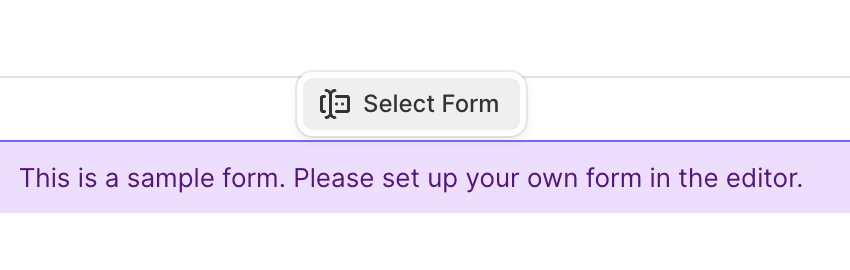
Open your site in the website editor. Then click on "Add Section" and select "Form" from the menu. Like most sections, you can add a title and subtitle to this section. Clicking the "placeholder form" you can select the form you'd like to embed on this page.
Form Submission Actions
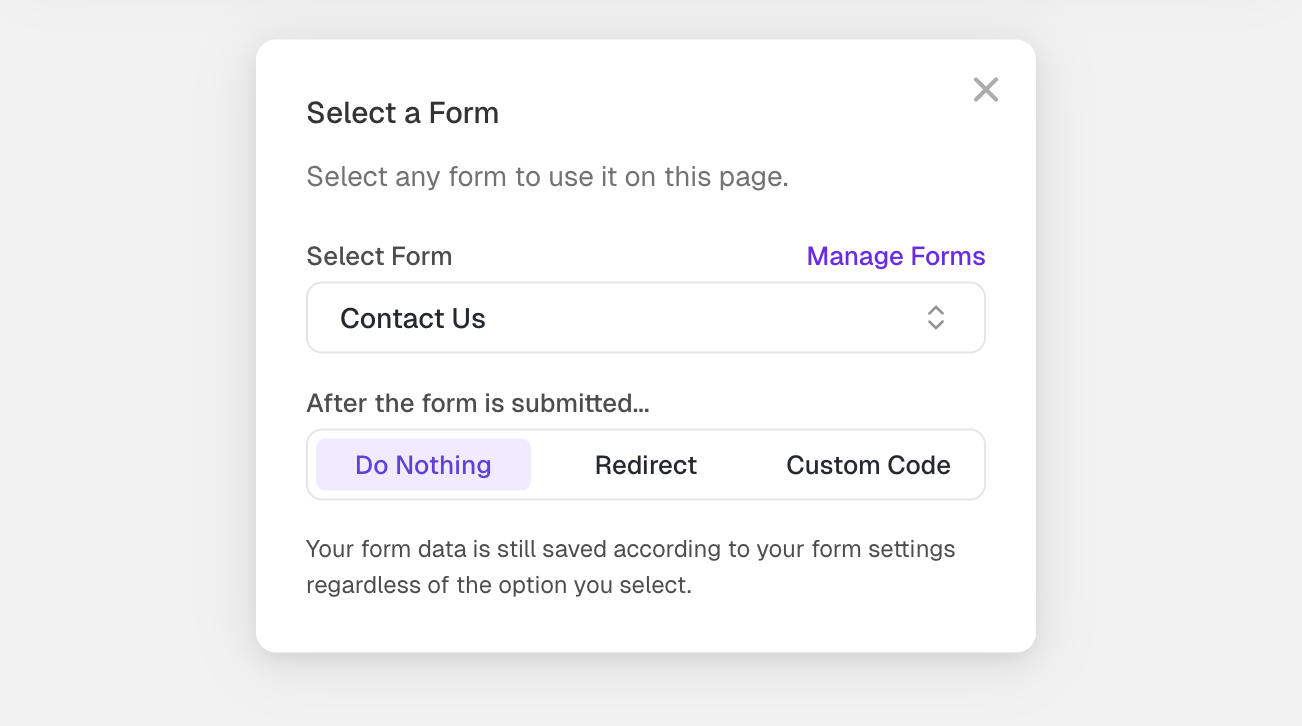
You can specify an additional action to take place once your visitor submits the form for that specific section. For example, you can redirect your customers to a different page to thank them for signing up.
Redirect Action
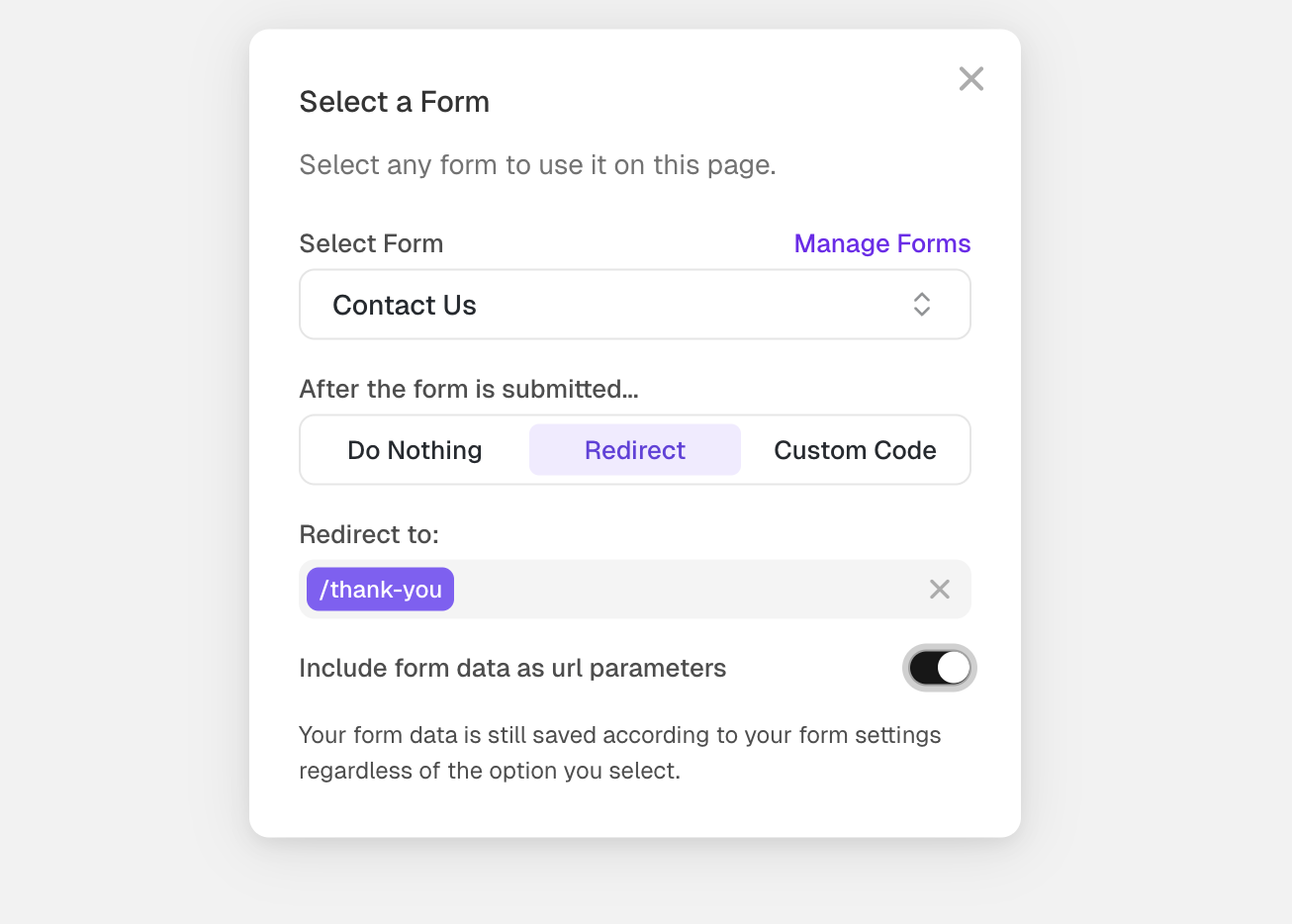
You can redirect the visitor after they submit your form. You can optionally also include the form data as url parameters. The url parameter names will depend on your form settings, the easiest way to determine them is to enable this feature and submit the form on your live site.
Custom Code Action
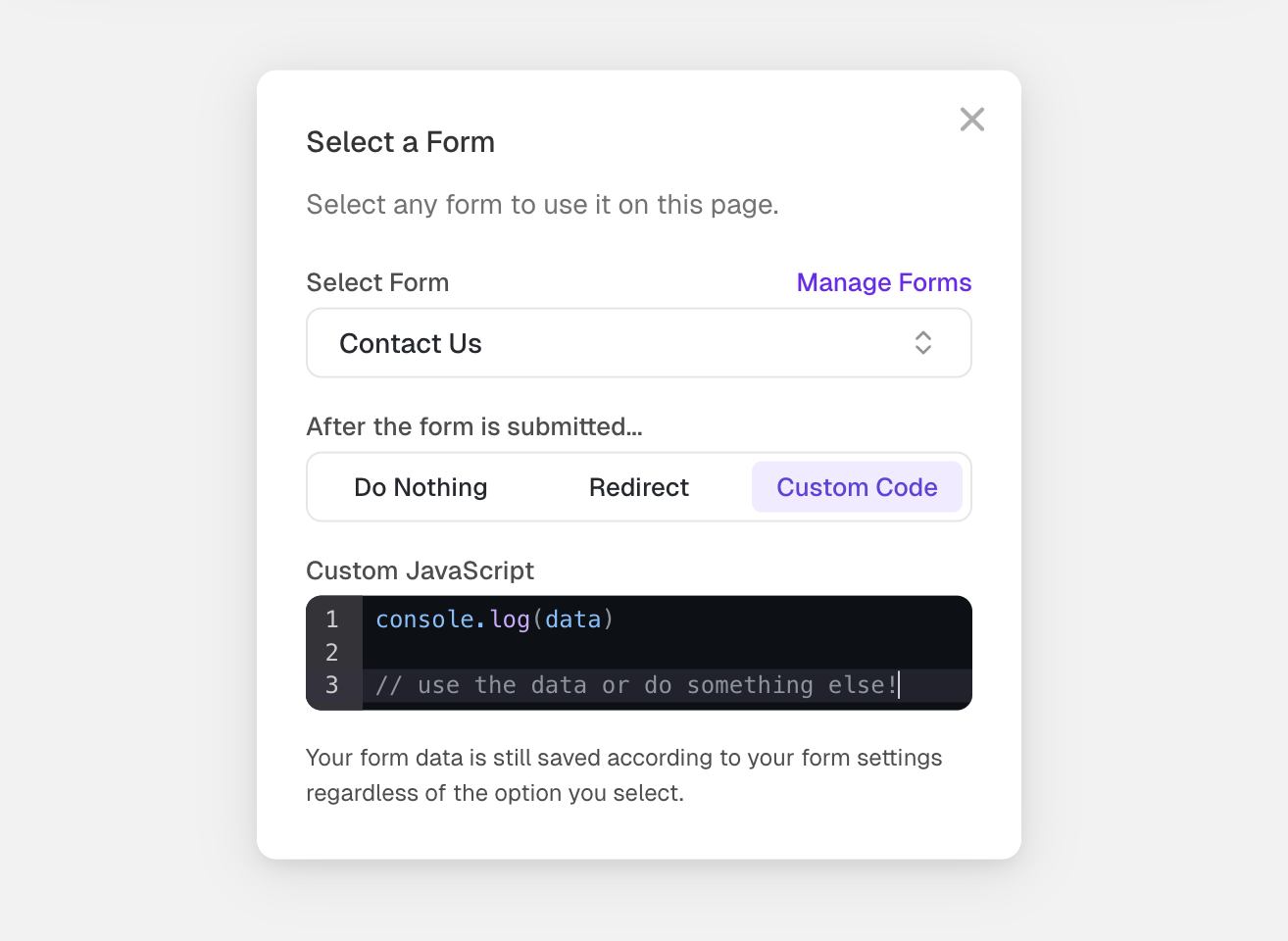
You can use this action to run your own custom code after a form is submitted. Your code will have access to a data variable that includes the content from the form submission for your convenience. Since the data depends on your form settings, we recommend enabling this setting and logging out the data. Then you can do a test submission to see the structure.
To decide what happens with the form submission itself, have a look at Form Actions.