
Hide a Section for Specific Languages (v2 Editor)
If your site has multiple languages, you can control which sections appear in each language version. This lets you show different content for different languages.
This feature only works on sites with multiple languages enabled. Learn how to add a language.
Show or hide a section for specific languages
In the left sidebar, find the section you want to configure.
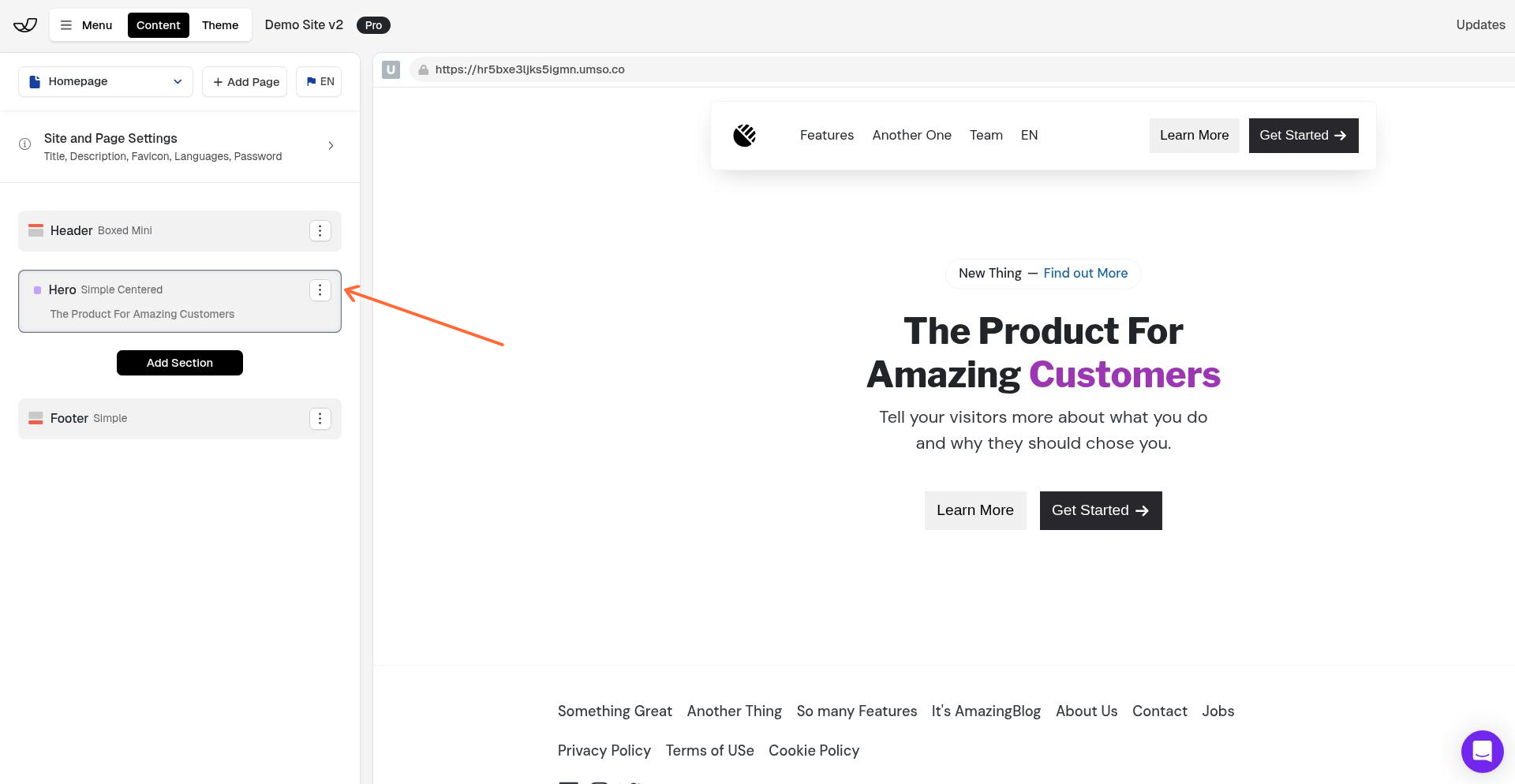
Click the 3-dot menu on the section. You can access this menu in two ways:
From the sidebar: Click the 3-dot icon on the section card
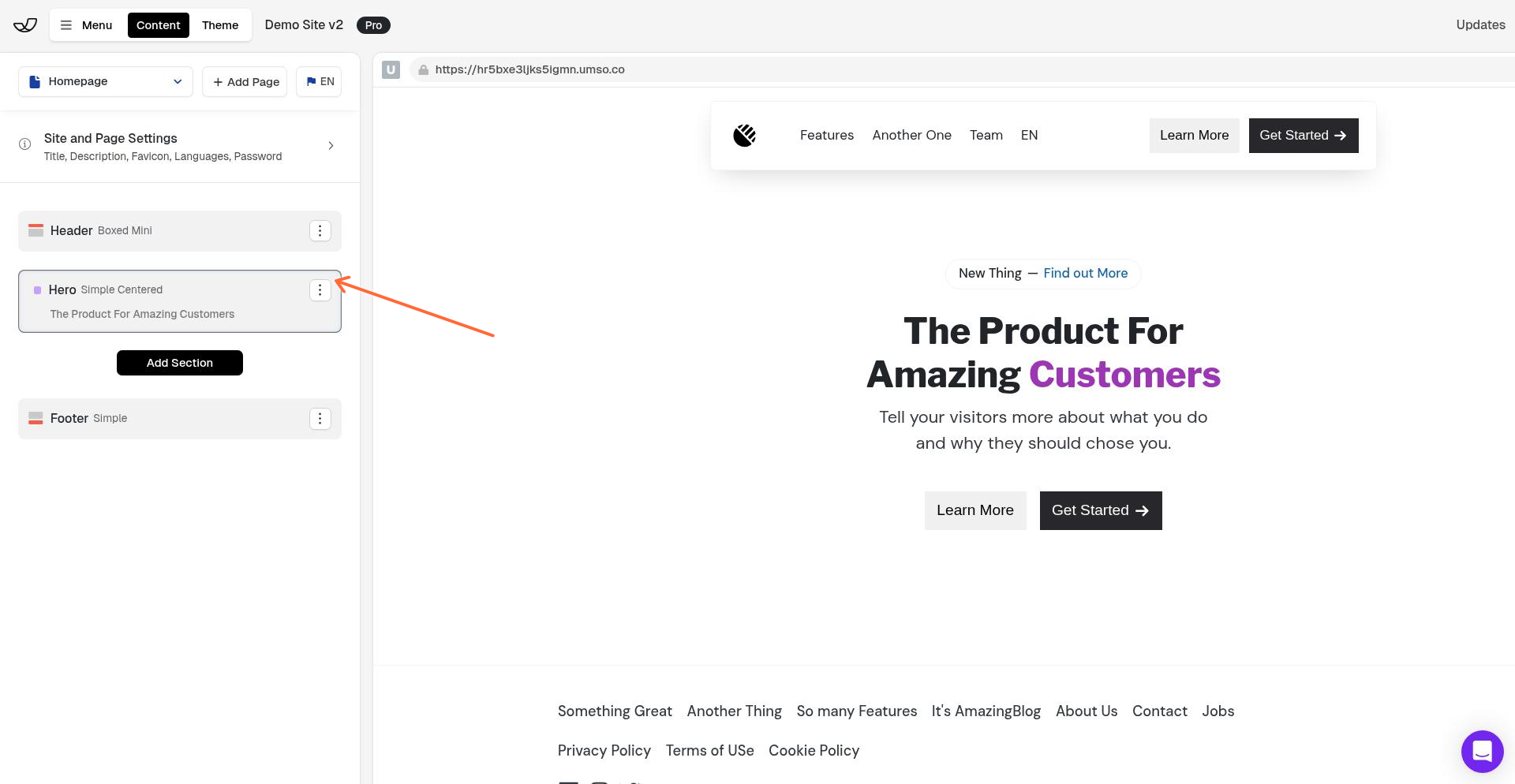
From the section itself: Click on the section in the editor, then click the 3-dot menu in the top right
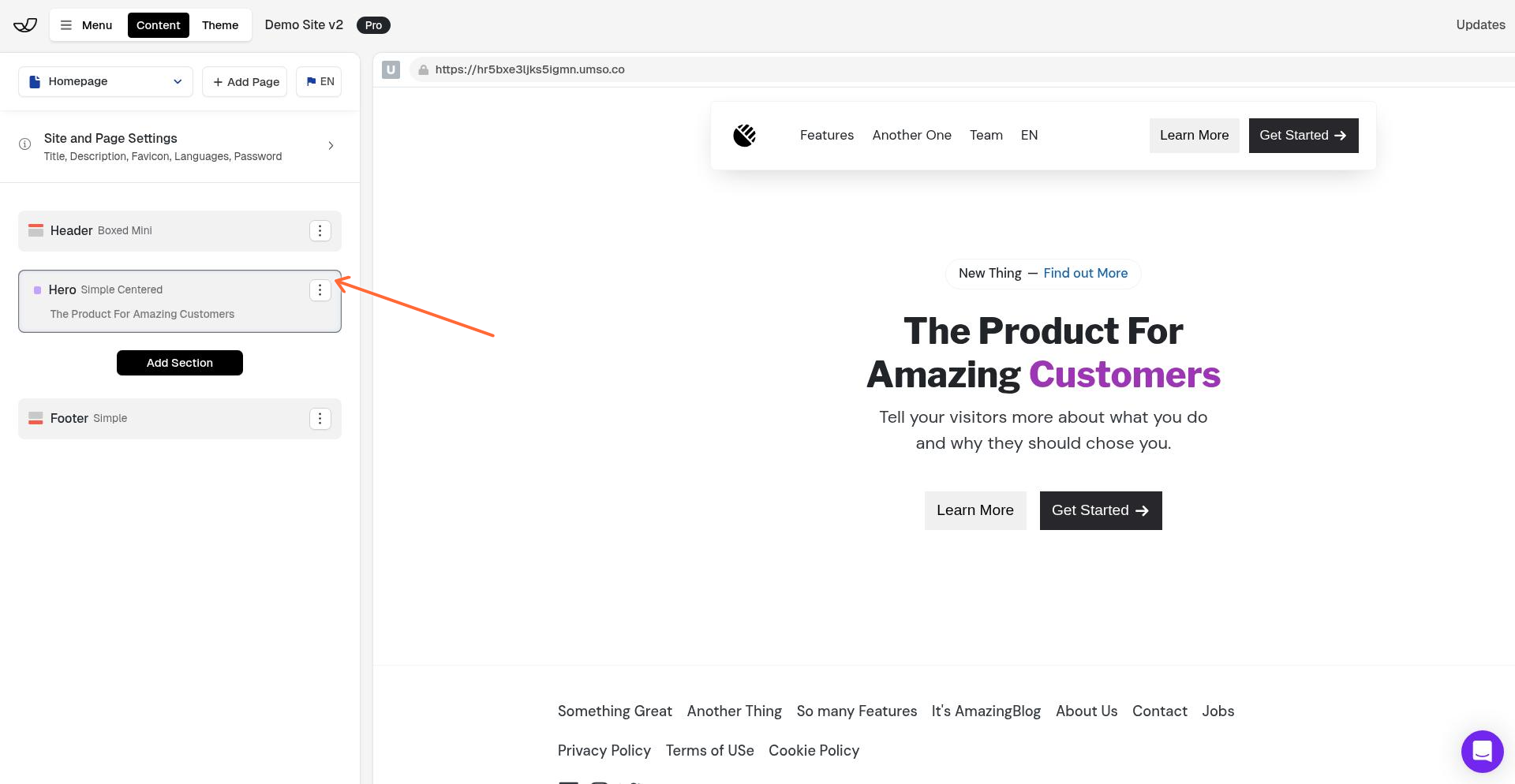
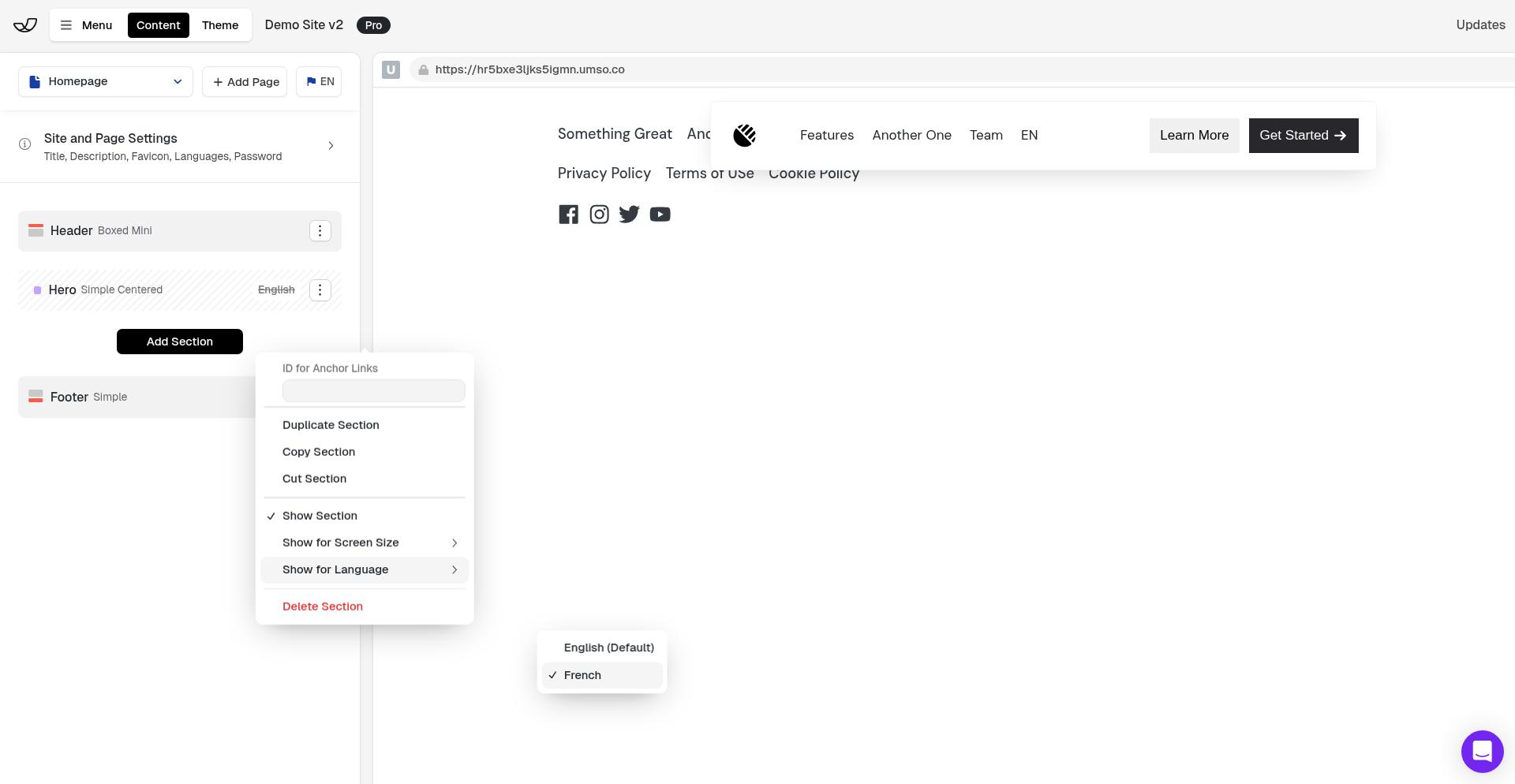
Select Show for Language from the menu.
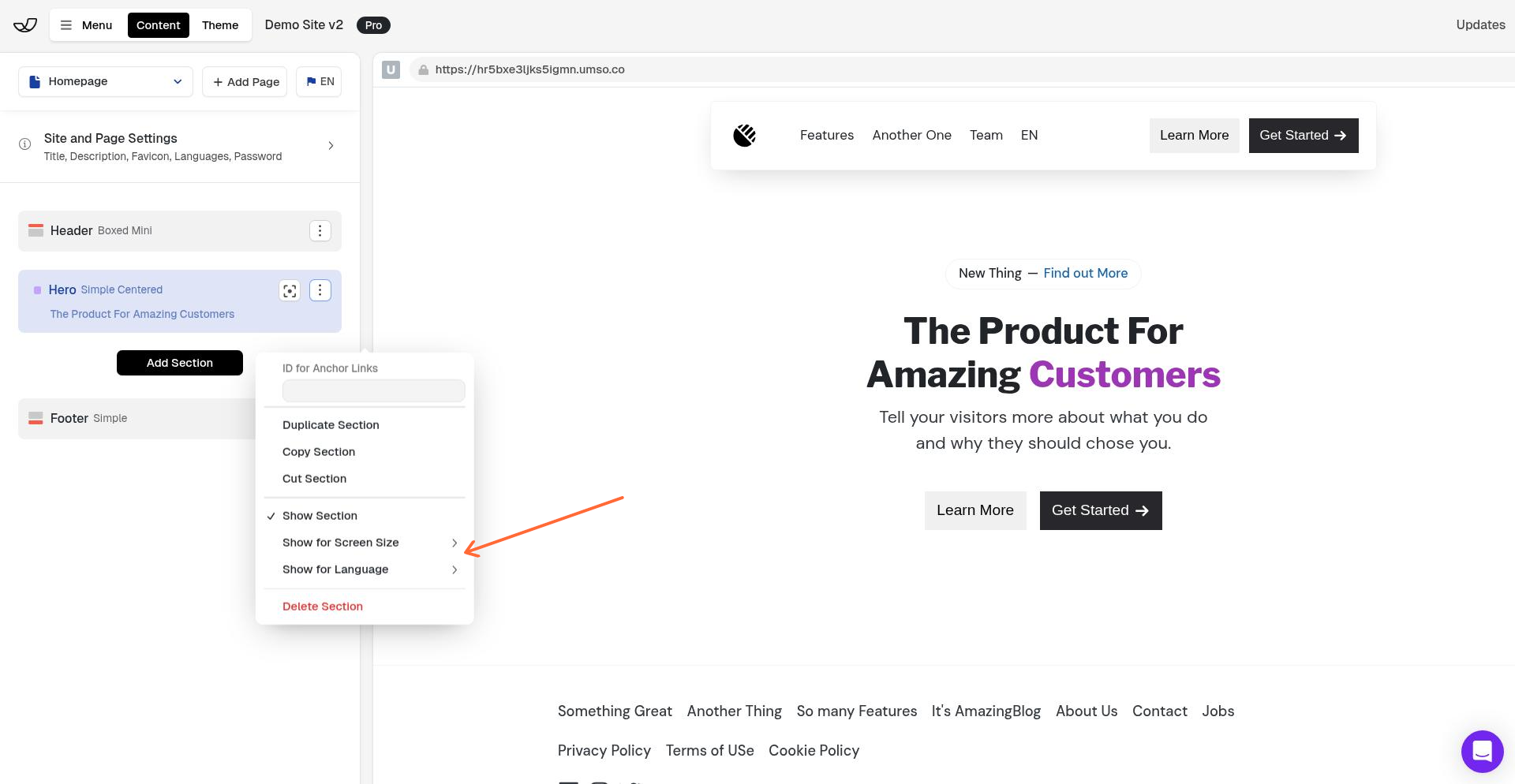
Choose which languages should display this section.
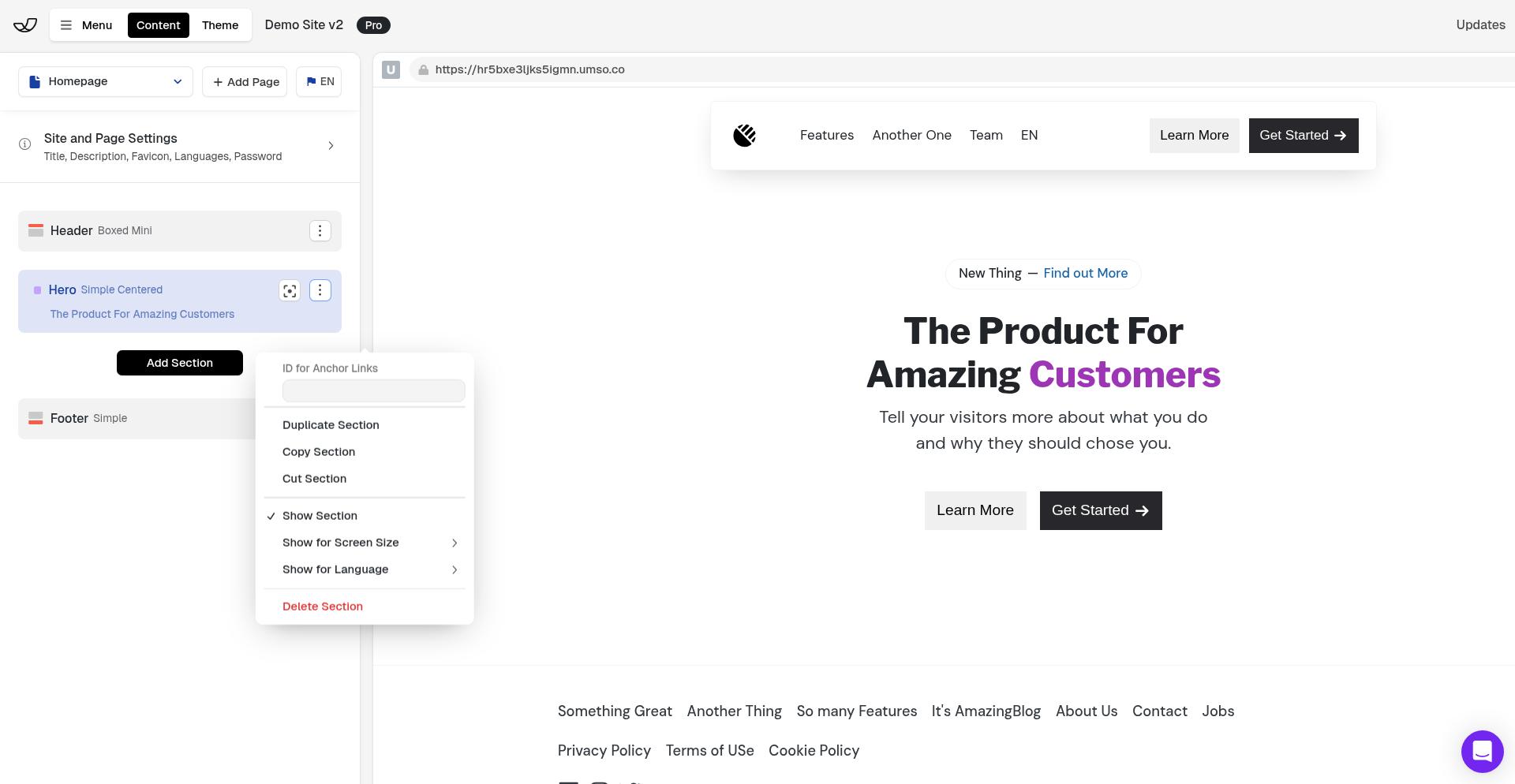
The section will only appear when viewing your site in the selected languages. When you switch languages using the language picker in the editor, hidden sections will appear greyed-out in the sidebar.
Use-cases:
This feature is useful when you want to:
Show region-specific content (e.g., a "US Locations" section only in English)
Display different testimonials or case studies per language
Create language-specific calls to action or offers
Build completely different page structures for different markets
The header and footer sections cannot be hidden for specific languages. This feature only works for regular content sections.
Sections are visible in all languages by default. You only need to configure this if you want to hide a section from specific languages.