
Add a Language (v2 Editor)
This article covers the v2 editor. For the latest editor version with AI translation features, see Translating Your Site.
You can add multiple languages to your v2 website and translate content manually. Languages are managed through the Settings panel.
Open Settings
In the v2 editor, click the "Site and Page Settings" button in the sidebar to access your site's language settings.
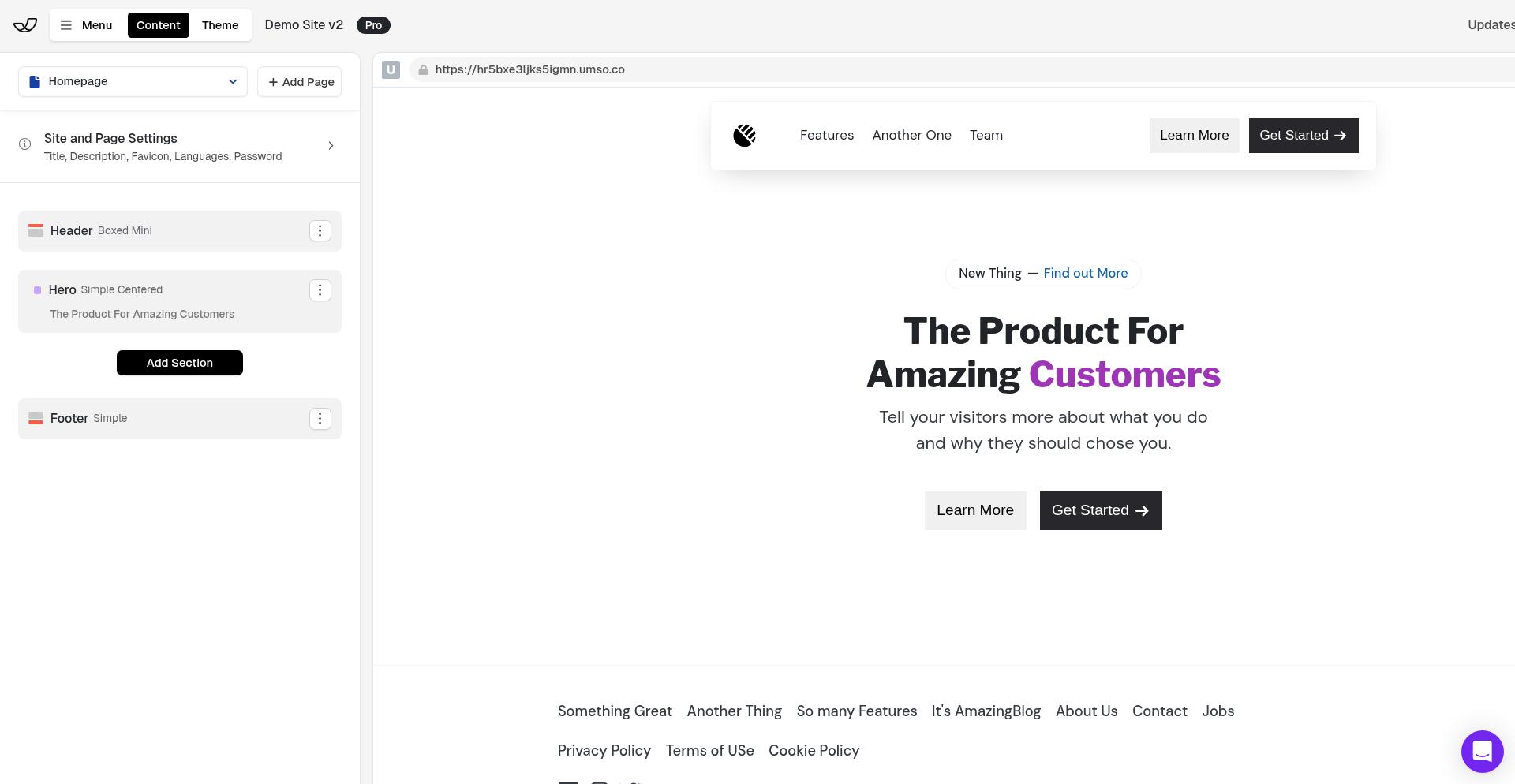
Add a Language
In the Settings panel, scroll to the "Additional Languages" section. Click the input field to see available languages.
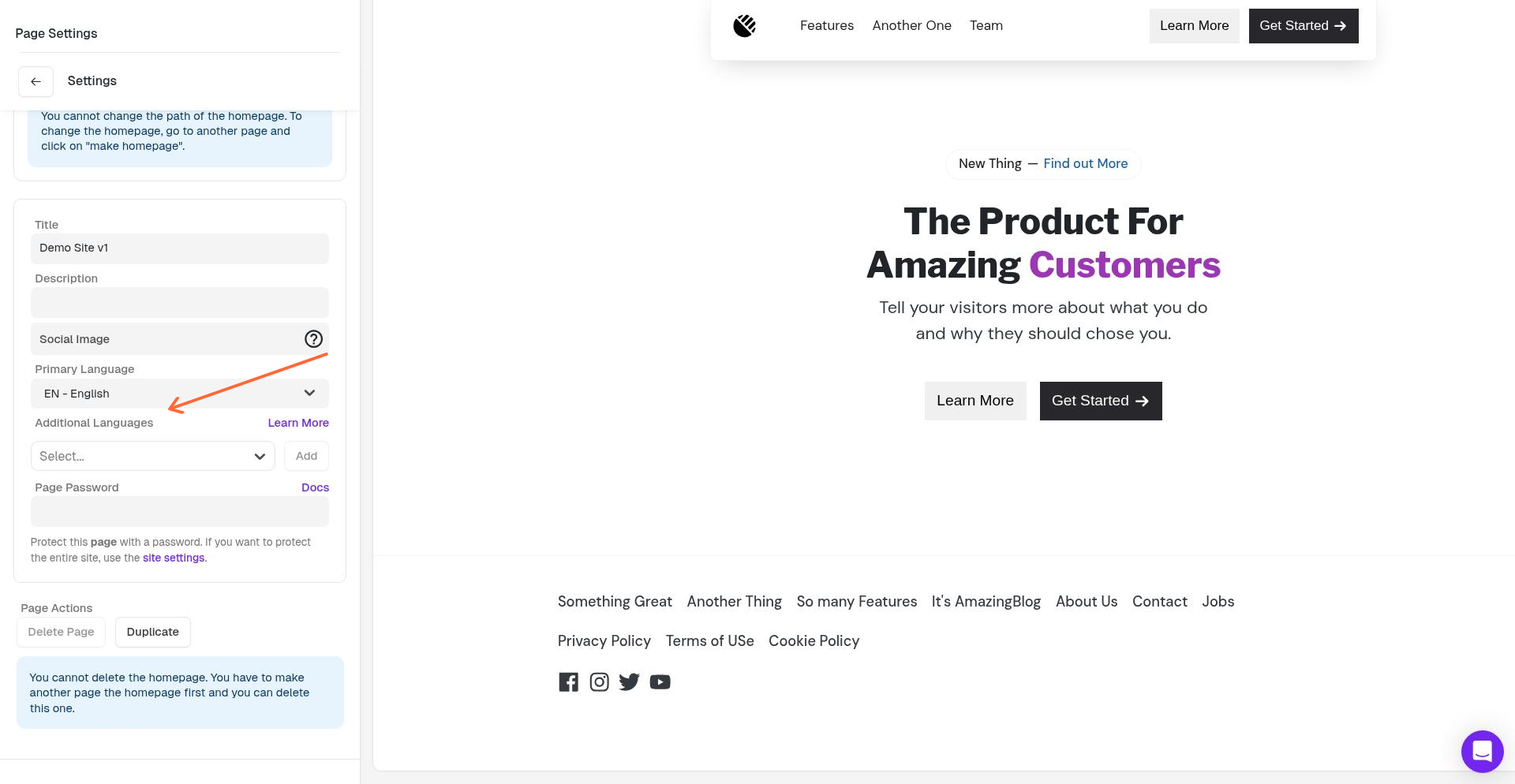
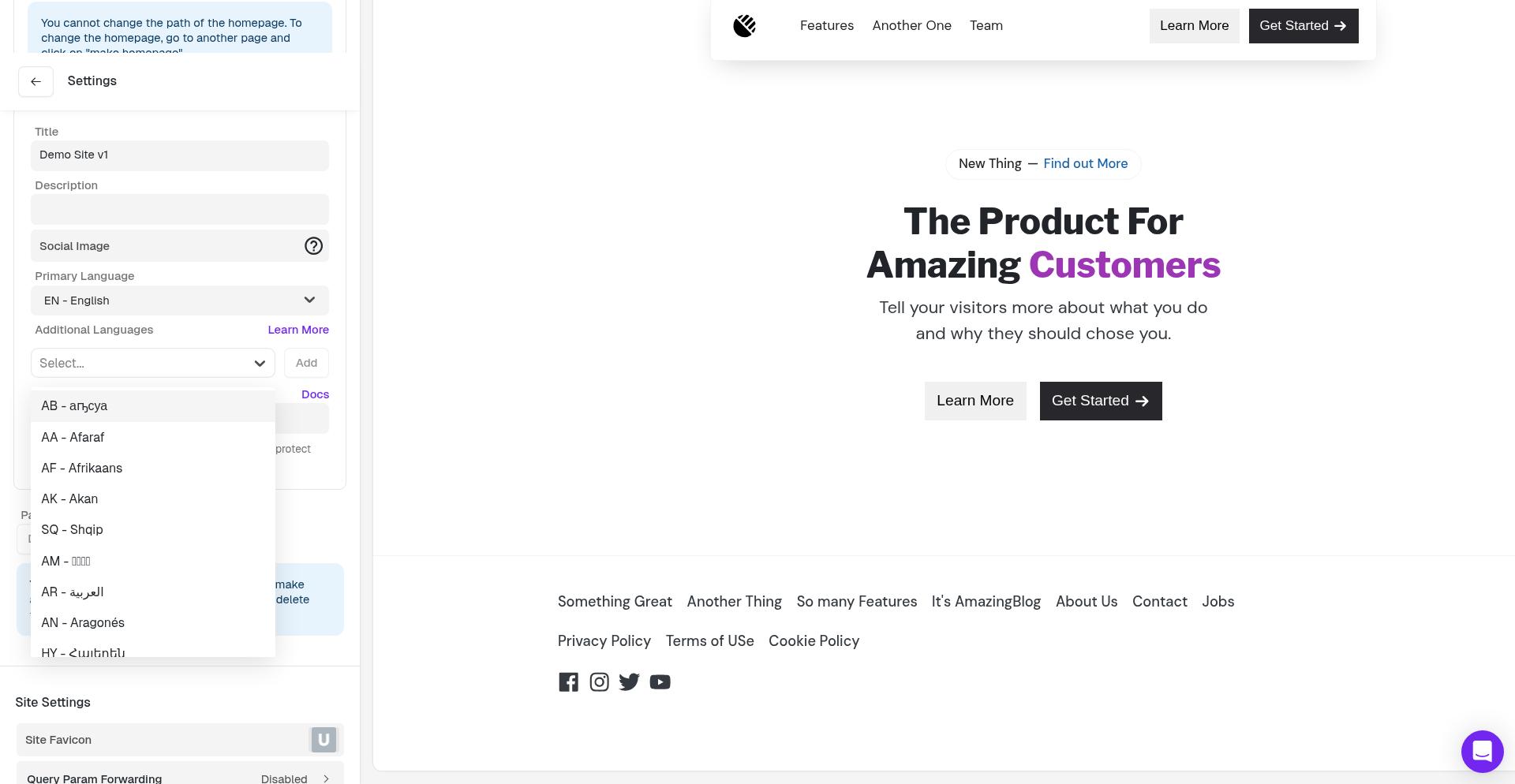
Type or select the language you want to add from the list. For example, select "French" to add French to your site. Select your chosen language from the dropdown results.
The language will be added to your site immediately.
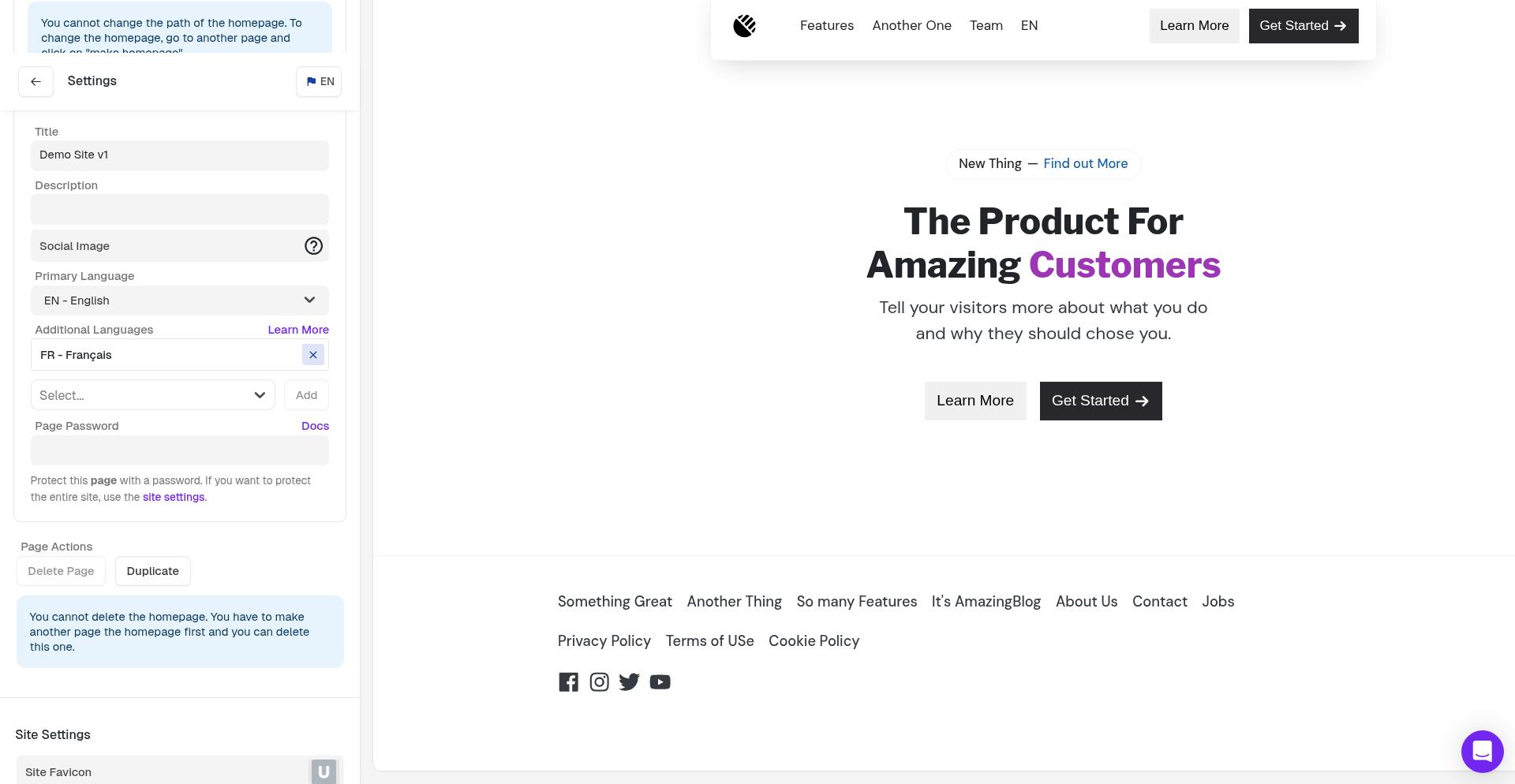
Switch Languages to Edit Content
Once you've added a language, use the language picker in the header to switch between languages.
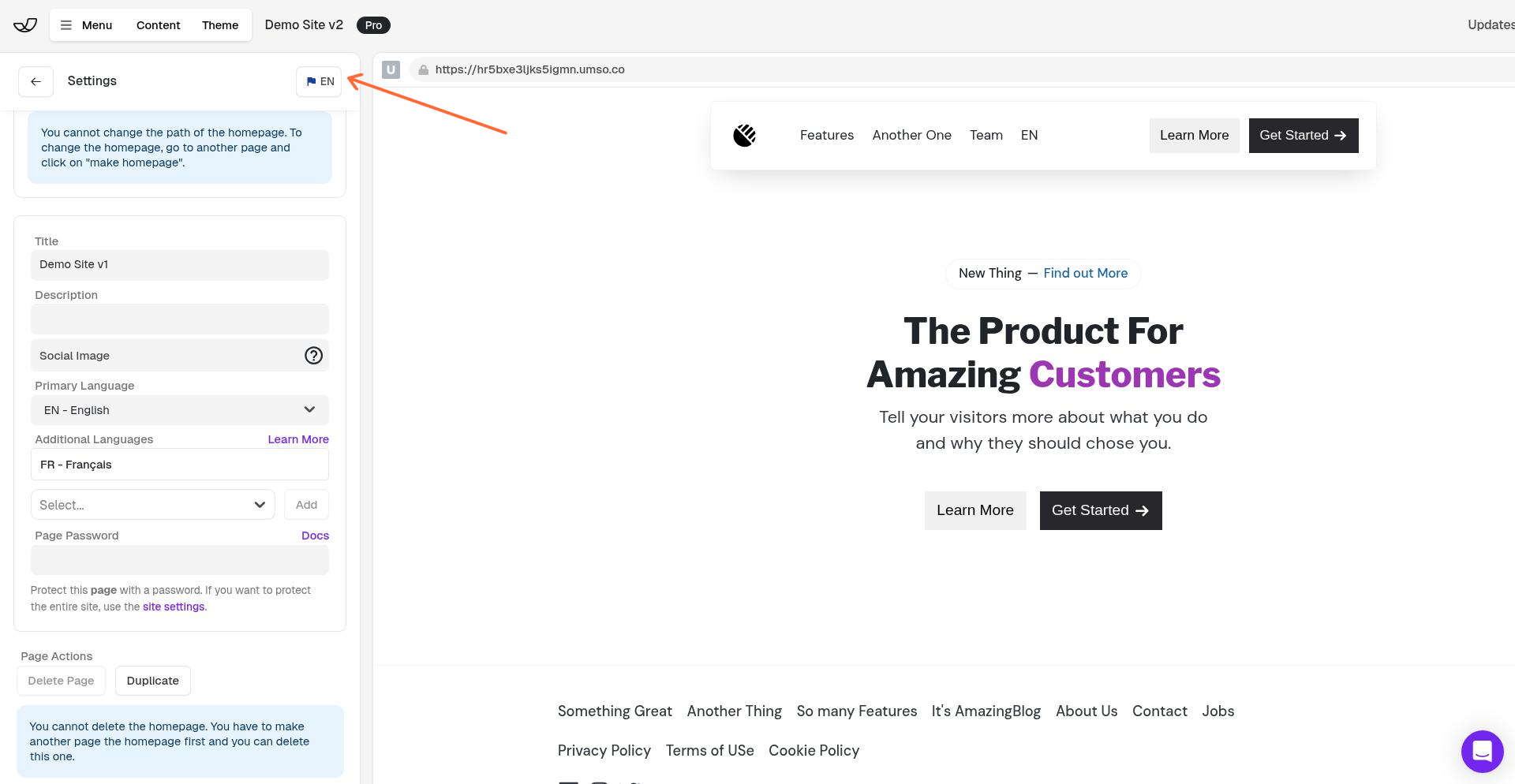
Click the language picker to select which language you want to edit. Changes you make will only apply to the active language.
Helpful Notes:
Content not translated in a language will automatically fall back to your default language on your live site.
Removing a language from Settings will not delete your translations but it will hide them from visitors. Once you add a language back, you will still be able to see and update your previous translations for that language.
There is no automatic translation feature in the v2 editor. Upgrade your site to the latest editor for automatic translations.