
Site and Page Passwords
If you want to launch your website to a limited audience or keep it private during your testing phase, you can protect it with a password. Everyone who knows the password will be able to access your site. You can change or remove the password at any time. When you create or change a site password, everyone who has previously accessed the site will also need to enter the new password.
Site passwords are available on all paid plans. If you are on our free plan, you'll need to upgrade before being able to use site passwords.
Site Passwords
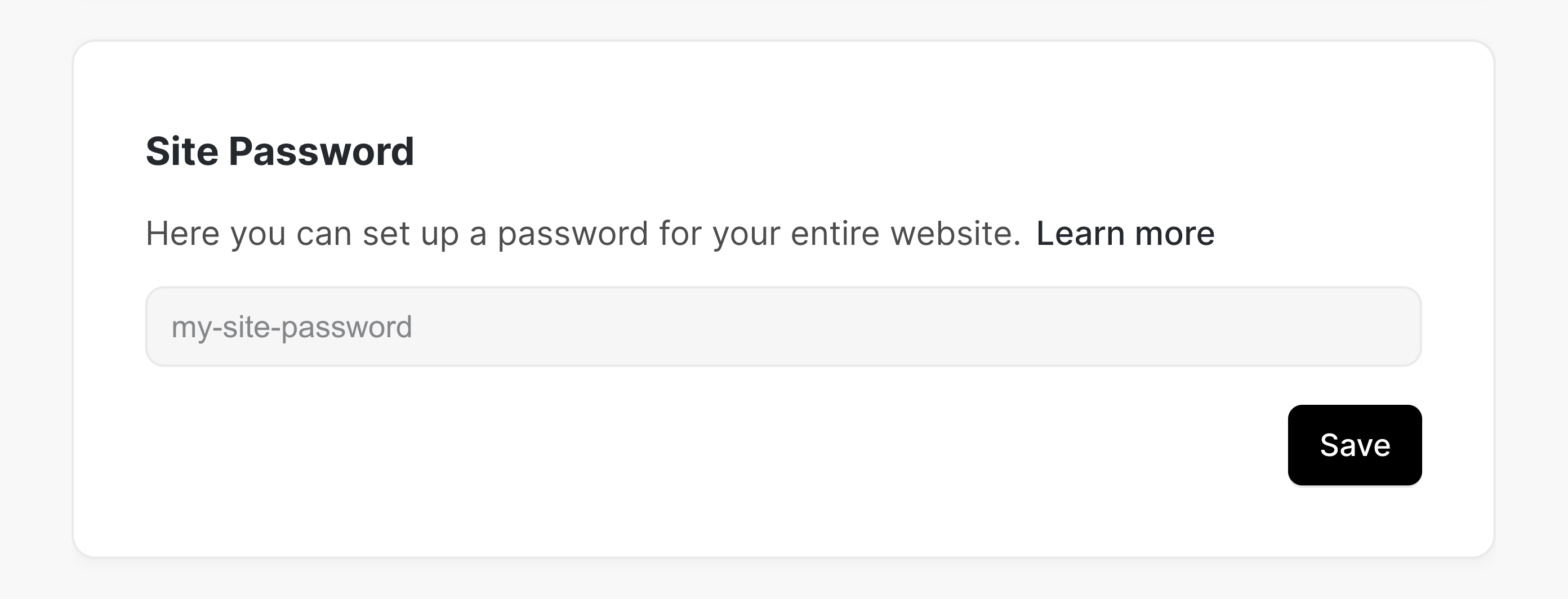
You can set the password in your site settings dashboard. Open your site in the editor, click on Site Settings and find the "Password" under "General".
After creating, changing, or removing a password, you need to click on "Save Password" to apply your changes. The change will become effective immediately. You don't have to publish your site again.
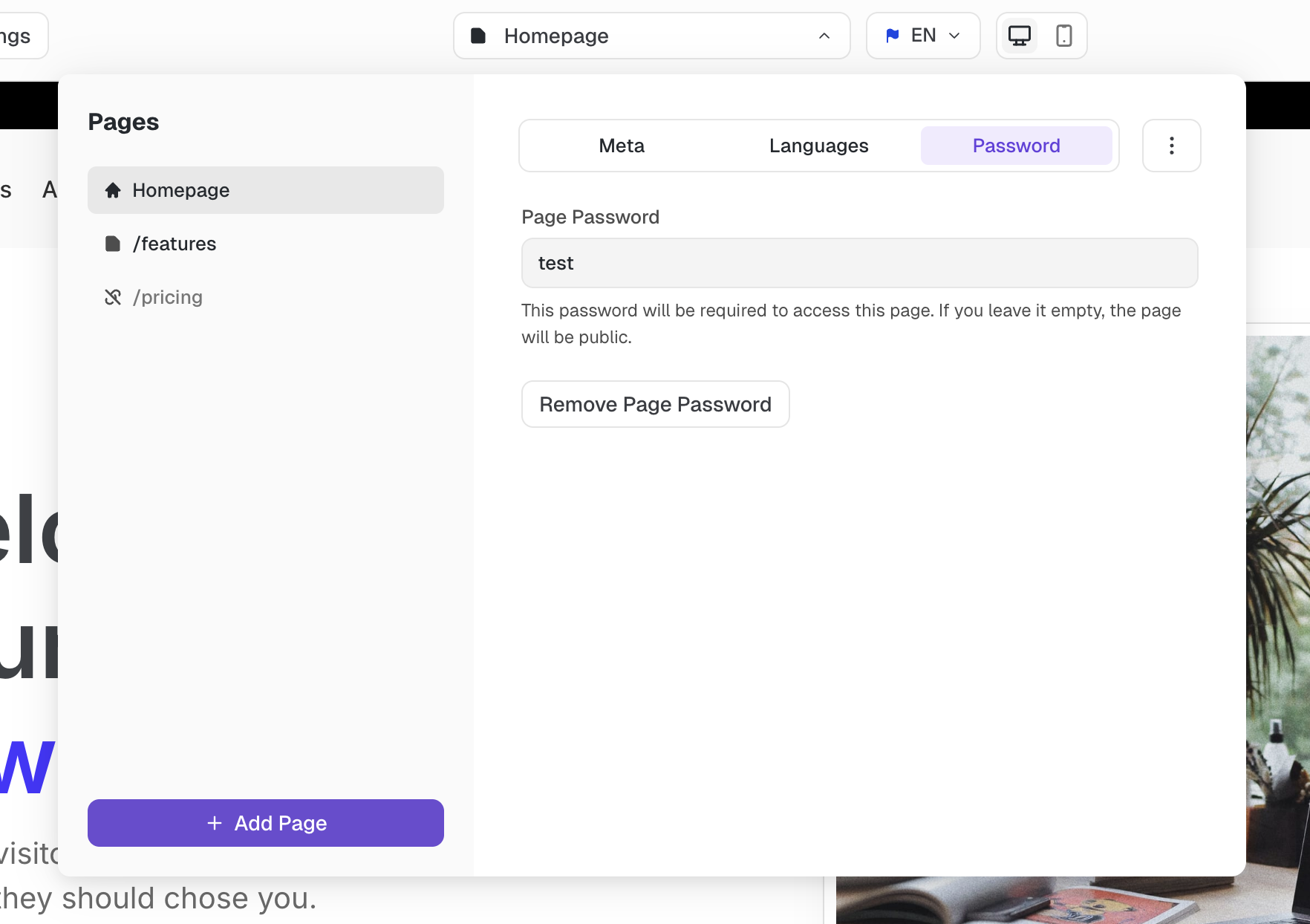
How to set a Page Password
To set a password for a specific page, open the page-picker and click the "Password" tab. Page passwords only become active when you publish your site.
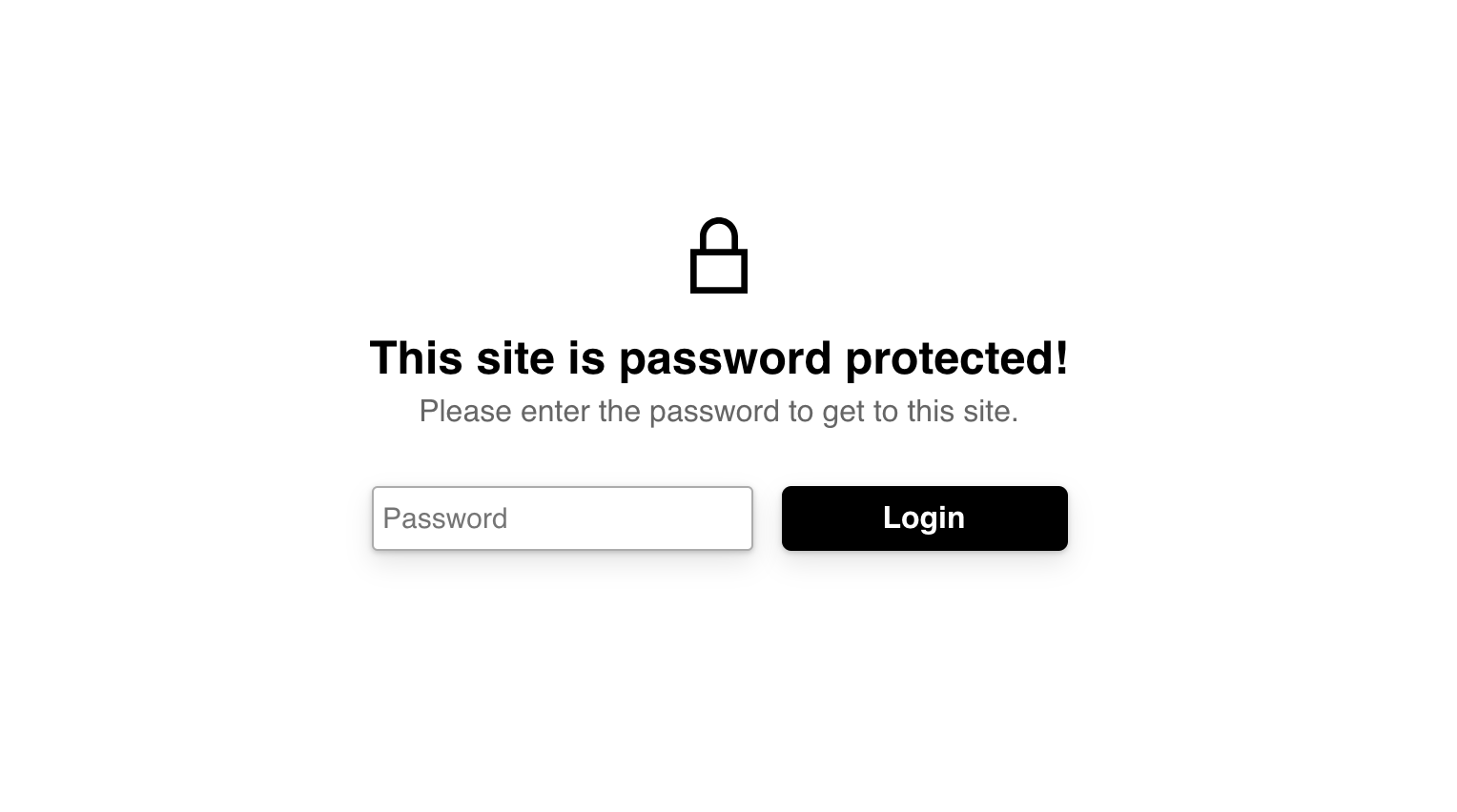
What your visitors see
When you set a password on your site, everyone who visits it will need to enter the password before viewing your site. Your site will also not be accessible by search engines or bots.
Once a visitor enters the correct password, they will see your normal site content. A cookie will be set to remember the login information of that user so that they don't have to log in again the next time they visit. However, if you change the password, all previously logged-in users will have to log in again.