
Links
Anchor Links
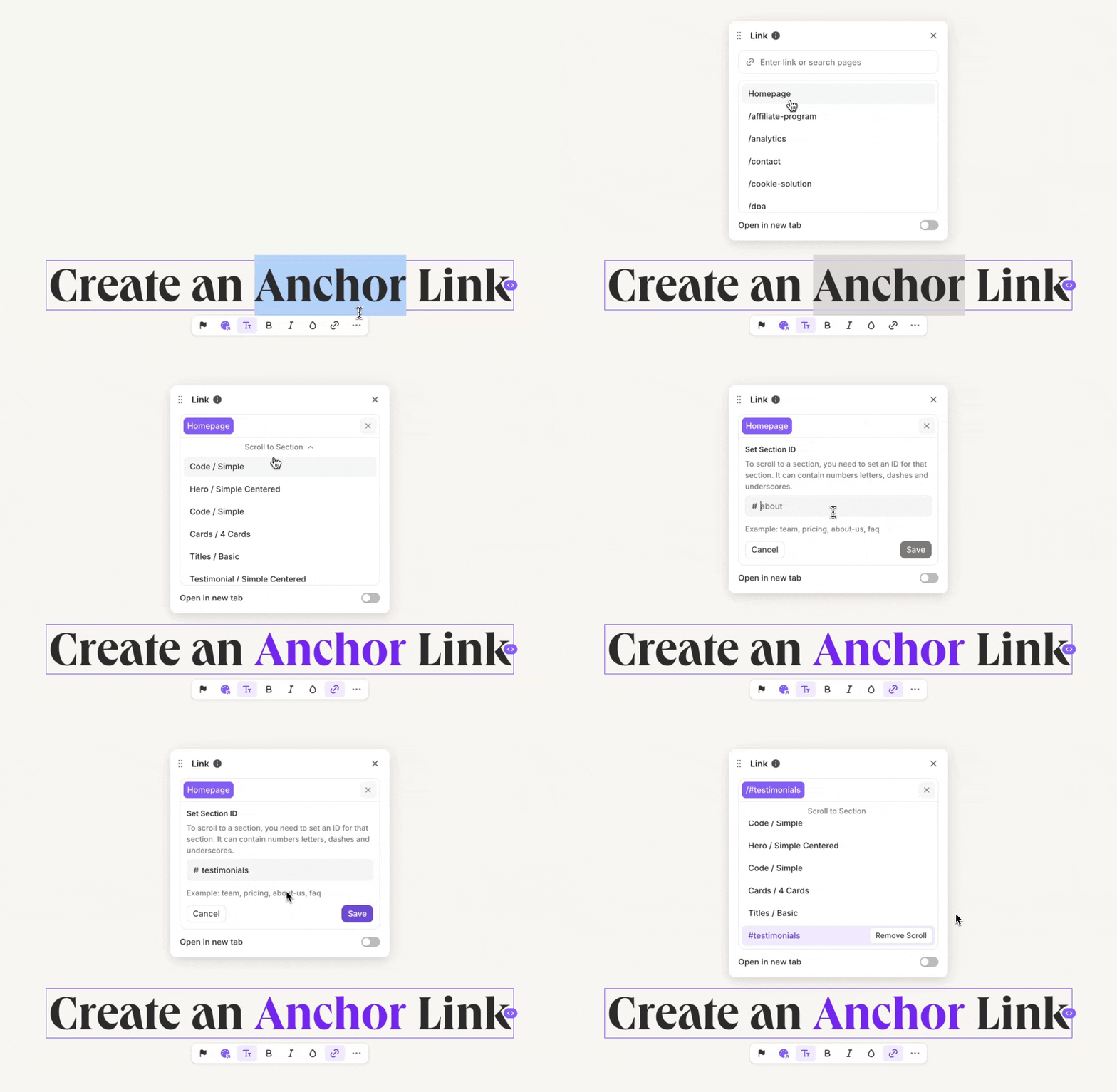
Anchor links allow you to scroll to a specific section on the same page or another page. To scroll to a section, first select the page. Then click on "Scroll to Section" and select the section. A section needs to have an ID if you want to scroll to it. If it doesn't have one yet, you'll be prompted to enter it.
Internal Links
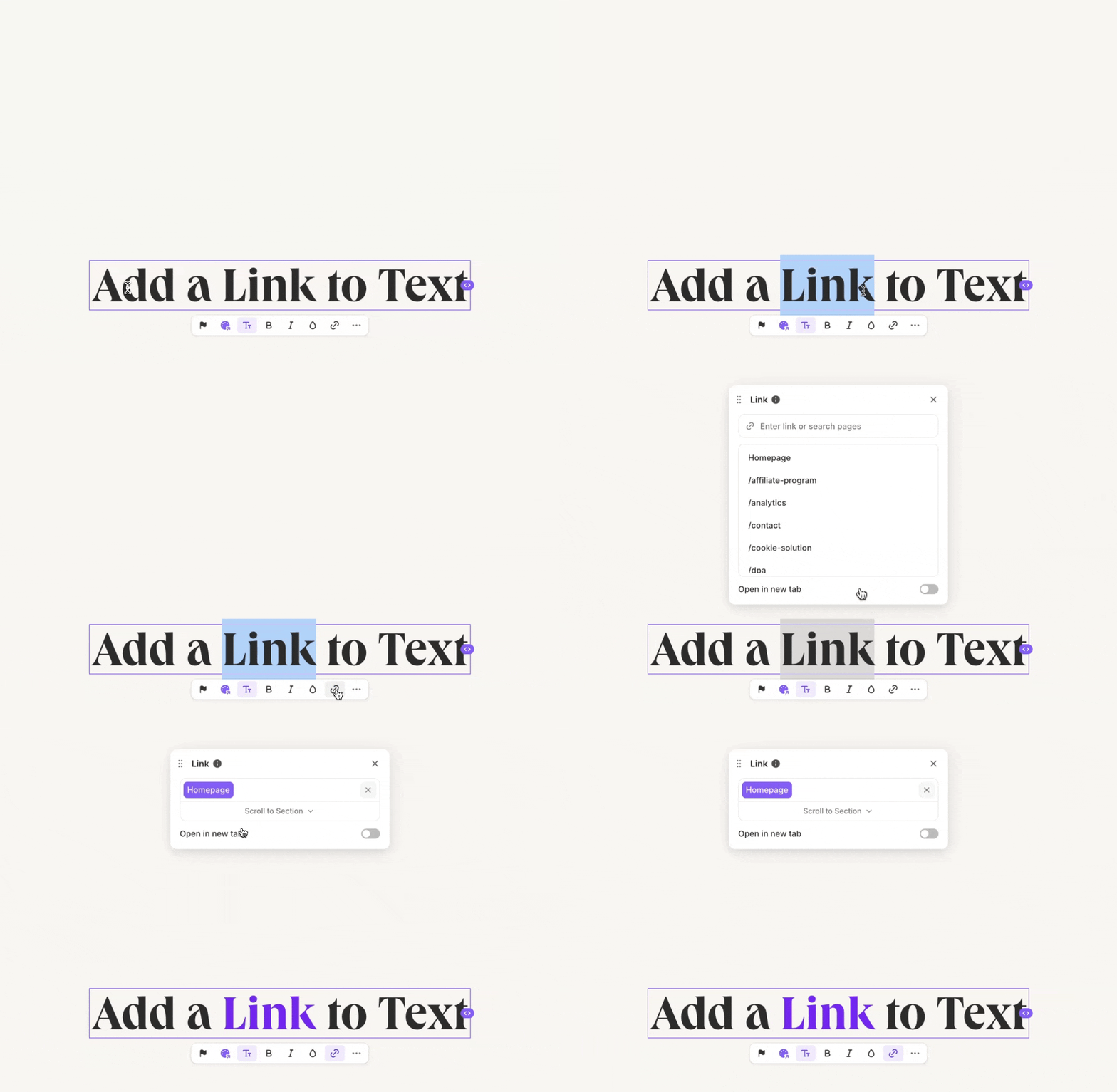
To add a link to any text, select the text and then click the 🔗 icon. The link picker will open. Learn how to add specific types of links below.
Important
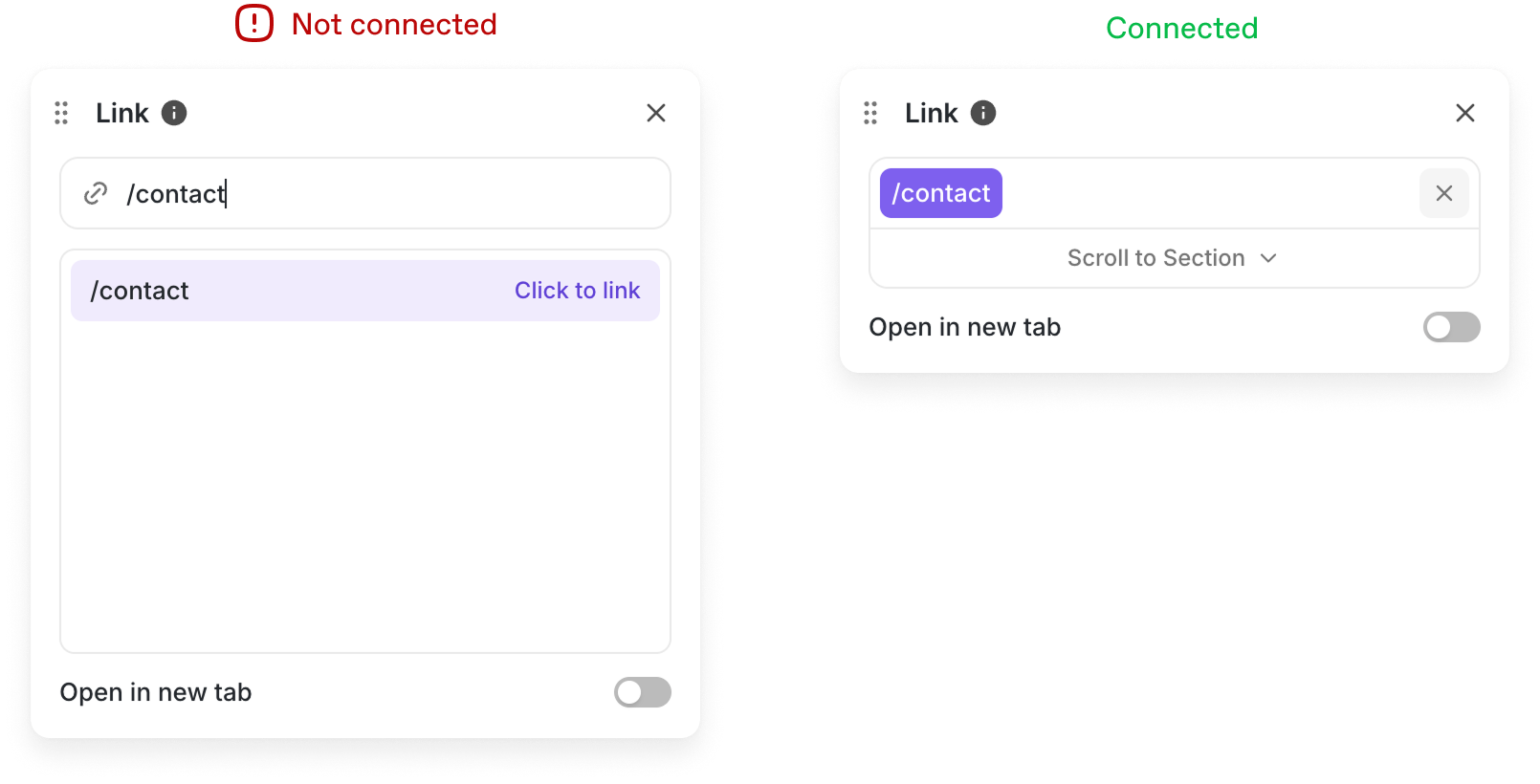
When adding an internal link, it's important to click the page to ensure the link is connected. By connecting the link to your page, you get automatic multilingual support and your link won't break if you change the url of your page.
External Links
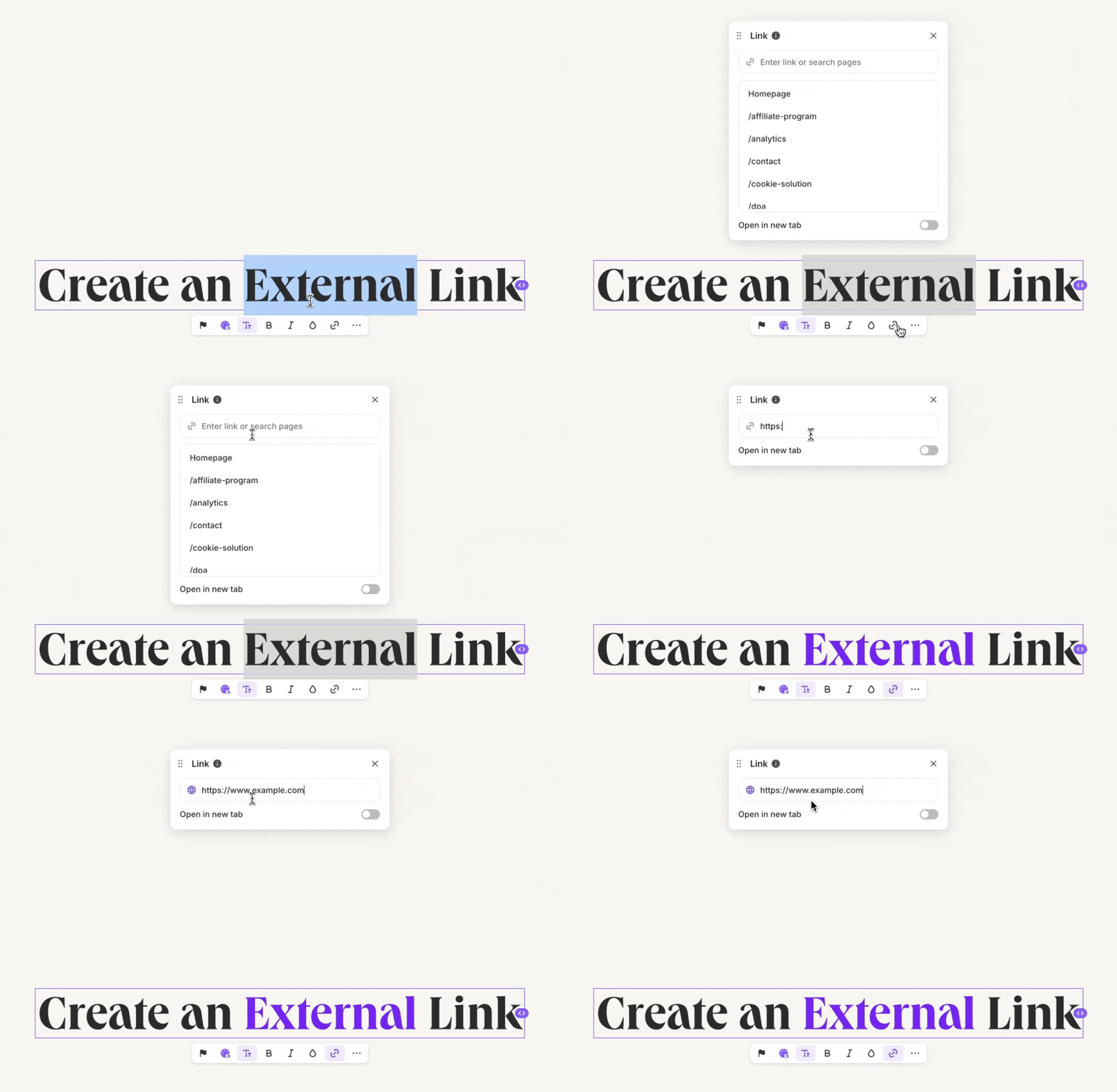
To link to an external website, you simply enter the entire URL into the link field. However, don't forget that your link has to start with http:// or https://.
Link to email or phone number
To create a link to directly write an email you can put your email address in a link URL input like this:
mailto:[email protected]To start a phone call you can put your phone number in a link URL input like this:
tel:+1-234-567-8900If you click the link it'll suggest your phone to call this number and on desktop, it tries to reach out to your phone if possible.
Adding Links to Any Text
To add a link to any text, select the text and then click the 🔗 icon. The link picker will open.